

Introduction: Bring Your Imagination to Life with Krea AI
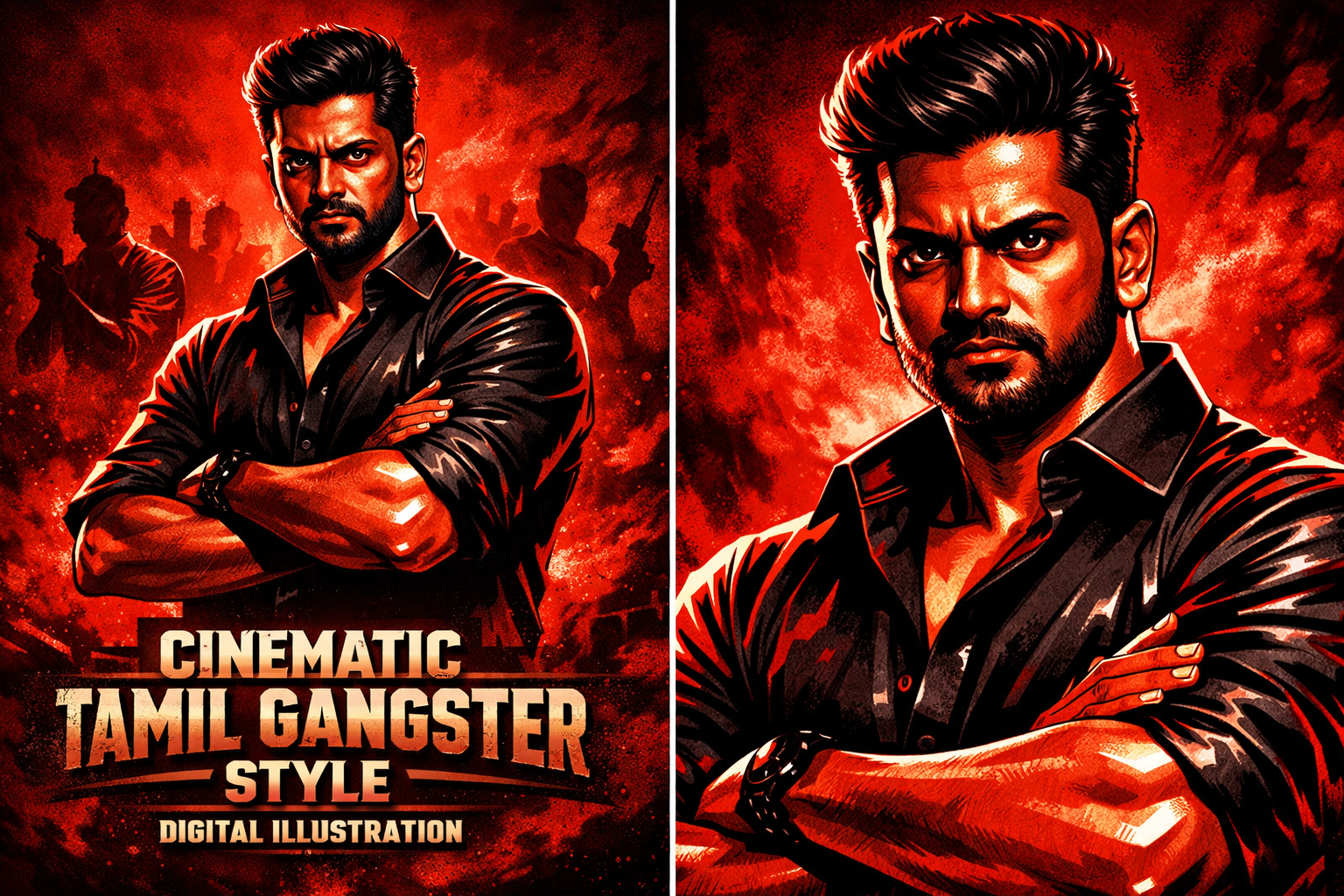
Are you looking for a fast and powerful AI tool to turn your thoughts into stunning visuals? Meet Krea AI — a cutting-edge platform that helps you generate high-quality images and videos in seconds.
Whether you want to visualize a futuristic city, create custom animations, or enhance blurry images, Krea AI makes it all possible—without any design skills.In this guide, you’ll learn exactly how to use Krea AI to generate, enhance, and animate images easily. Let’s dive in!
What is Krea AI?
Krea AI is a powerful artificial intelligence tool that lets users generate visually rich content from simple text prompts. It is ideal for:
- Content creators
- Digital artists
- Social media managers
- Marketers and designers
With Krea AI, you can go from imagination to output in just a few clicks—and most features work in real-time!
Step-by-Step: How to Use Krea AI
1. Create an Account & Log In
To get started:
- Go to Google.com and search for “Krea AI“.
- Click the first link and sign up for a free account.
- Once registered, you’ll land on the Krea AI homepage, where multiple tools are available.
2. Generate Real-Time Images
Want quick, visually rich content? Use the “Real-Time Images” option.
- Select the “Real-Time Images” tool from the homepage.
- Enter a creative prompt, for example:
“Virat Kohli dressed as Captain America standing in a neon city.” - Within seconds, Krea AI will generate your image.
- Click the Download button to save the image.
🖼️ Pro Tip: You can use Krea AI to visualize fan art, concept design, or create content for Instagram Reels and posts.
3. Create Custom Images with Prompt & Aspect Ratio
Want more control over the output?
- Choose the “Generate Image” option.
- Type in your desired prompt, like:
“A lion walking through a futuristic city at night.” - Select your aspect ratio based on where you’ll use the image (e.g., square for Instagram, wide for YouTube thumbnails).
- Click Generate and your image will be ready shortly.
💡 Need help writing prompts? Use ChatGPT to help craft detailed prompts for better output.
4. Enhance Low-Quality or Blurry Images
If you have a blurry image and want to upscale it, Krea AI offers a powerful “Enhance” tool.
Here’s how:
- Click on the “Enhance” tab.
- Upload your low-resolution or pixelated image.
- Choose how much you want to upscale: 2x, 4x, or more.
- Hit “Enhance” and wait a few seconds.
- Download your ultra-clear version.
This is especially useful for:
- Old photos
- Pixelated product shots
- Zoomed-in profile images
5. Create AI Animations with Keyframes
Krea AI also lets you generate animations using two or more images.
To animate:
- Select the “Animator” option.
- Click “Open AI” tool.
- Upload two images as keyframes (start and end).
- Set the duration and animation style (e.g., smooth, cinematic, loop).
- Click Generate.
In seconds, you’ll have a motion video with smooth transitions.🎬 This feature gives your content a Hollywood-style vibe, perfect for storytelling or intros.
6. Unlock Unlimited Usage (Secret Tip)
Want to use Krea AI without limits?
Try this hack:
- Use temporary emails or create multiple accounts to bypass daily usage limits.
- You can find temp email tools and updated links via Telegram groups or forums that share Krea AI resources.
⚠️ Note: This method is unofficial. Use it responsibly and ethically.
Why Krea AI Stands Out
- Real-time performance
- User-friendly interface
- Customizable aspect ratios and styles
- High-quality output with minimal effort
- Supports creative workflows across marketing, design, and animation
Conclusion: The Power of AI at Your Fingertips
Krea AI is not just a tool—it’s your creative partner. Whether you’re generating an image from scratch, enhancing visuals, or animating scenes, Krea AI empowers you to turn your ideas into compelling visual content instantly.No advanced tools. No expensive software. Just your imagination and a simple prompt.